
Worlds best mobile and pc hacking tips&tricks....!

Showing posts with label Google Tricks. Show all posts

14 August 2016

YouTubeAccording to Alexa, YouTube is the third most visited page on the Internet which means you have probably visited the page in the past. These tips and tricks help make your experience more enjoyable and if possible, productive.

YouTube keyboard shortcuts

YouTube has several keyboard shortcuts that can be used while watching YouTube. Keyboard shortcuts like pressing the spacebar to play and pause or using the arrow keys to fast forward and rewind can make a big difference while on YouTube.

Share a video at any point

YouTube Current timeNot everyone wants to watch a full video, link to the exact location you found most entertaining instead of making your friends or family watch the full video. To do this get to the location you want and pause the video. Once paused right-click the video and select Get video URL at current time and then copy the link created.
Alternatively you can manually add the time by adding "#t=XXmXXs" at the end of the URL, where XXm is the minutes, and XXs is the seconds into the video you want to start. For example:
https://www.youtube.com/watch?v=MKVWBUwoV4o
would become
https://www.youtube.com/watch?v=MKVWBUwoV4o#t=33s
to link to the video 33 seconds into the video. If you wanted to link 4 minutes and 20 seconds into a video add #t4m20s to the end of the URL. Alternatively you can use only seconds, so 4 * 60 (seconds in a minute) = 240 + 20 = 260 seconds for 4 minutes and 20 seconds into the video.

Find out what is popular on YouTube

YouTube can be a great place to find the most popular videos because of its popularity. Visit the Popular on YouTube to find the most recent popular videos, recently released music videos, top cute videos, latest trailers, events, and much more.

Add videos to Watch Later

Watch laterSometimes you just do not have the time to watch a video or maybe you just do not feel like watching an hour long video at this time. In the bottom right corner of every video is a Watch Later button that will add the video to your watch later list. Once you are ready to watch the video or if you saved a video to share with someone else you can find the video in your Watch Later Playlist.
Bonus Tip: Each of the thumbnails of videos on YouTube also shows the Watch Later icon when hovering over the thumbnail of the video.

Take advantage of search filters

YouTube usually does a great job giving you search results but is not always perfect. Take full advantage of their search filters by clicking the Filters button to get a list like that shown below. In the filters list you can refine the searches to when the video wasuploaded, length of the video, view count, and features like HD (High definition) and 3D.
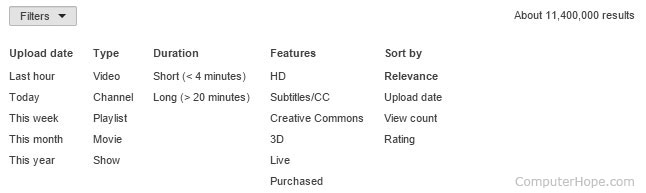
YouTube search filters

Watch live videos on YouTube

YouTube is not just pre-recorded uploaded videos they now also feature YouTube Live, which has live events, sports, news, gaming, music, education, and much more.

Take full advantage of YouTube tools

Not many people know that YouTube also has several helpful YouTube Tools that can help extremely helpful when creating new content. For example, the YouTube editor allows you to edit uploaded videos, create videos, and adjust settings like the brightness and contrast, pan and zoom, stabilize, slow motion, and rotation. Other tools include a Slideshow creator, YouTube capture, Captions, Audio Library, and YouTube Analytics.

Bypass regional restrictions and other blocks

Some videos may have restrictions that prevent them from playing on a certain device, playing in a certain region, or other restrictions that prevent you from playing the video. You can bypass some of these restrictions by changing how the URL is entered into your address bar.
For example, copy the id of the video (shown in red) in the URL.
https://www.youtube.com/watch/?v=dD40VXFkusw
Once the id of the video has been copied erase everything after the .com/ and add "v/<id>" where id is what was copied earlier. Once this is done your URL should resemble the example shown below.
https://www.youtube.com/v/dD40VXFkusw
Loading this URL opens the video in a full screen, but because of how it is loaded many of the restrictions YouTube may have on the video are ignored.

Set the default video quality

Watch all videos at the highest quality by adjusting your settings to use the best quality. To adjust your settings click on your profile icon in the top-right corner of the window and click the YouTube Gear settings icon as shown below. In the YouTube Account Settings, select Playback and then select "Always choose the best quality for my connection and player size." If you have a slow Internet connection or YouTube videos frequently need to buffer, select the "I have a slow connection. Never play higher-quality video" option.
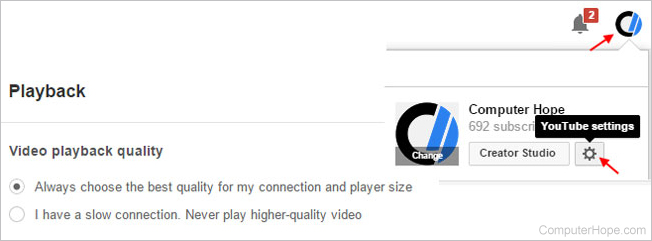
Change YouTube video quality

Alternative ways to watch YouTube

There are dozens of ways to watch YouTube today. Most Smart TVs already have an app that allows you to watch YouTube videos on your TV using your remote. For those who do not have Smart TV or have a Smart TV but do not like the interface (it is not easy typing on a remote), there are also other solutions.
ChromecastOur current favorite method of watching YouTube on the TV is using the Google Chromecast. The Chromecast allows you or anyone else with a smartphone or computer to stream YouTube videos to your TV with a click of a button. The Chromecast is the easiest solution to stream videos to your TV, and you can type on your phone or computer or use your voice to search for videos instead of using your TV remote.
Other popular alternatives of watching YouTube
  • Apple TV - The Apple TV is another great solution for watching YouTube and other content.
  • Consoles - Consoles like Xbox, PlayStation 3, and Wii all have a YouTube player.
  • Lean Back - YouTube Lean Back is a completely different way of watching YouTube videos and allows you to browse and watch videos on alternative devices.
  • Roku - The Roku is another great device that connects to your TV to watch YouTube and other content.
  • TiVo - The TiVo DVR is another fantastic method of watching YouTube, your shows, and other content.
Google
Below is a list of our top ten Google tricks many people who use Google don't know.

Find weather and movies

Type "weather" or "movies" followed by a zip code or city and state to display current weather conditions or movie theaters in your area. For example, typing weather 84101 gives you the current weather conditions for Salt Lake City, UT. Typing movies 84101 gives you a link for show times for movies in that area.

Definitions

Pull up the definition of the word by typing define followed by the word you want to define. For example, typing: define bravura would display the definition of that word.

Local search

Visit Google Local enter the area you want to search and the keyword of the place you want to find. For example, typing: restaurant at the above link would display local restaurants.

Phone number lookup

Enter a full phone number with area code to display the name and address associated with that phone number.

Track airline flight and packages

Enter the airline and flight number to display the status of an airline flight and it's arrival time. For example, type: delta 123 to display this flight information if available.
Google can also give a direct link to package tracking information if you enter a UPS, FedEx or USPS tracking number.

Translate

Translate text, a full web page, or search by using the Google Language Tools.

Pages linked to you

See what other web pages are linking to your website or blog by typing link: followed by your URL. For example, typing link:http://www.computerhope.com displays all pages linking to Computer Hope.

Find PDF results only

Add fileType: to your search to display results that only match a certain file type. For example, if you wanted to display PDF results only type: "dell xps" fileType:pdf -- this is a great way to find online manuals.

Calculator

Use the Google Search engine as a calculator by typing a math problem in the search. For example, typing: 100 + 200 would display results as 300.

Stocks

Quickly get to a stock quote price, chart, and related links by typing the stock symbol in Google. For example, typing: msft displays the stock information for Microsoft.

21 March 2016


 Chrome Developer Tool
As you probably know, there is a button on the right-click menu of Google Chrome and IE 10+ called ''Inspect element''. This the developer tool. And you can have a lot of fun with it. I'll give you two examples on how to use it in this tutorial.

1. Change the text of a webpage:

You can have fun on webpages just by changing the value of a <span> (a text label). For example, go on the 4shared.com site (a free file sharing site). Then create an account if you don't have one (or just connect with Google, Facebook or Twitter). When you are done, upload something that is heavy (more than 100 MB) by dragging and dropping it on the home page of 4shared. Then you can see an uploading status window on the screen. So right-click on the percentage and click on ''Inspect element''. Now you can see a little window that appears on the bottom of the web browser. There are to ways : either you got the number or you got the % symbol. If you got the number, try to find the symbol below. Then double-click on it and type what you want (Eg: '',000,000 dollars in my bank account'')

google chrome tricks

2. Get a Non-Crypted password in JS/PhP code:

Some sites are not very safe and just verify the password directly in the PhP/JS code. Then, even if it become rare, you can get the password. Just follow these steps :

  1. Find the login form on the website you want to hack
  2. Right-click on it and then click on ''Inspect element''
  3. Search on the window that appeared ''<form'' and then ''action=''
  4. After it, there is a URL, If it ends by ''.js'', just copy it and paste it in the URL bar of your browser
  5. If it ends by ''.php'', type ''view-source:'' before pasting the URL
  6. Then search something like ''password'' in the code.
WARNING: This method works better with JS than with PHP. Sometimes, there is no URL after ''action='' but just a JS function. Then you have to press Ctrl+U to see the source and search for ''password'' in the whole code.

12 March 2016


Top 10 Highest Google Adsense Earners in the World


Here are top 10 Google AdSense earners in the world 


1. Courtney Rosen


URL: http://www.ehow.com/

Earning: $350,000/month
Alexa Rank: 324
Daily Unique Visitors: 3,070,000
Daily Page Views: 20,210,000
Backlinks: 56,369
Registered In: 1999
About: Online how to guide web

2. Pete Cashmore


URL: http://mashable.com/
Earning: $250,000/month
Alexa Rank: 221
Daily Unique Visitors: 3,800,000
Daily Page Views: 29,210,000
Backlinks: 96,776
Registered In: 2005
About: Technology, lifestyle, business and world

3. Shawn Hogan


URL: https://forums.digitalpoint.com/

Earning: $195,000/month
Alexa Rank: 1008
Daily Unique Visitors: 3,200,000
Daily Page Views: 26,210,000
Backlinks: 8,679
Registered In: 1999
About: Forum on blogging and seo marketing

4. Markus Frind


URL: http://pof.com/

Earning: $190,000/month
Alexa Rank: 395
Daily Unique Visitors: 3,000,000
Daily Page Views: 20,100,000
Backlinks: 56,369
Registered In: 2000
About: Online dating around the world

5. Kevin Rose

URL: http://digg.com/
Earning: $150,000/month
Alexa Rank: 482
Daily Unique Visitors: 1,900,000
Daily Page Views: 15,200,000
Backlinks: 630,876
Registered In: 2000
About: Sharing blogs and contents

6. Michael Arrington

URL: http://techcrunch.com/
Earning: $100,000/month
Alexa Rank: 409
Daily Unique Visitors: 2,100,000
Daily Page Views: 13,100,000
Backlinks: 87,701
Registered In: 2011
About: Technology news

7. Perez Hilton

URL: http://perezhilton.com/
Earning: $60,000/month
Alexa Rank: 107
Daily Unique Visitors: 1,000,000
Daily Page Views: 1,210,000
Backlinks: 13,172
Registered In: 2005
About: Celebrities activity

8. Jeremy Schoemaker

URL: http://www.shoemoney.com/
Earning: $20,000/month
Alexa Rank: 17900
Daily Unique Visitors: 70,000
Daily Page Views: 410,000
Backlinks: 2,488
Registered In: 2003
About: Skills to pay the bills

9. Amit Agarwal

URL: http://www.labnol.org/
Earning: $10,000/month
Alexa Rank: 2795
Daily Unique Visitors: 150,000
Daily Page Views: 300,000
Backlinks: 8,144
Registered In: 2007
About: Technology Blog

10. Pankaj Agarwal


URL: http://www.clickindia.com/
Earning: $9,000/month
Alexa Rank: 4766
Daily Unique Visitors: 130,000
Daily Page Views: 1,000,000
Backlinks: 1,585
Registered In: 2003
About: Buying and Selling Ads

Long-tail keywords are known for their ability to drive high-quality traffic to websites and provide substantial conversion potential. That is why many businesses pay a great deal of attention to finding the best long-tail word combinations. It is possible to use different methods for the winning keywords research, and in this article we are going to show how to use Google Autocomplete as a keyword spy tool.
What is Google Autocomplete?
Having been introduced in 2010, Google Autocomplete has affected the online search market. It changed the way people perform searches on the web and gave companies different approaches in their attempts to find the best keyword combinations.
Google Autocomplete suggests variants of search queries when you are typing in the search box on Google. For example, if you start typing the word “landscape,” Google will propose some fixed search queries such as “landscape design”, “landscape lighting” etc.

Google says, apart from time preservation, Autocomplete helps in number of other ways as well.
  • It helps safely omit any potential grammar mistakes, which is not only beneficial for the user, but also reduces the number of keyword versions which you usually should take into account when creating a keyword set.
  • It can suggest your own search query, which you have typed before. This is possible when you are signed in you Google account and have Web History enabled.
  • Quickly finds the most relevant information to you. Google Autocomplete also works well for local searches connected with weather forecasts, currency exchange rates etc.
How does Google Autocomplete work?
The main criterion for Google Autocomplete is popularity. Google says that all its suggestions are based on real people’s searches, so the search engine displays search queries that have been typed by Internet users most frequently. Some authors suggest that Google actually measures three factors: search volume, mentions in social networks, and general mentions on the Internet.
Since Google shows the most relevant keyword to the particular user results, its search query suggestions vary depending on the region and languages. Similarly, Google Autocomplete offers different results for those who are signed in with a Google Account by making use of their Web History.
How to find long tail keywords with Google Autocomplete
When we understand the principles of Google Autocomplete, we can use a long tail keywords tool. Say your website business is connected with landscape design software and you want to find some competitive long tail keywords. You type the two-word term “landscape design” and get 10 ideas for three-word keywords containing the target term.

In order to be more specific and receive longer keywords, you can type in the same way “landscape design software” and check the variants that Google suggests for the term.

When you are on the search results page, scroll down to the bottom to see searches related to the search query. We may consider these search queries as additional keyword ideas.

Importantly, before using this method as one of the ways to gather keyword ideas, make sure nothing interferes in the Google search. If you want search engine suggestions to be completely neutral and objective, sign out of your Google account and clear the search history in the browser.

31 January 2014

1.Whose the CUTEST!!!!!!!!!!!!!!!!!!!

2.You are G00GLE!!!!!!!!

Open Google and then type there Google Name and click on I'm Feeling Lucky & you can select your liked theme.

3.Google Gravity

Go to Google and type GOOGLE GRAVITY & click I'm feeling lucky.

4.Annoying Google

Go to Google and type ANNOYING GOOGLE & click I'm feeling lucky.

5.Play Pacman on Google

Go to Google and type PACMAN & click I'm feeling lucky.

6.Google Hacker

Go to Google and type GOOGLE HACKER & click I'm feeling lucky.

7.What's The TIME ????????

8.CHECK FLIGHT TIME

9.ELGOOG

Go to Google and type ELGOOG & click I'm feeling lucky.

10. Google Rainbow

Go to Google and type GOOGLE RAINBOW & click I'm feeling lucky.

11.Google Sphere

Go to Google and type GOOGLE SPHERE & click I'm feeling lucky.

27 January 2014

Google is loaded with tricks and Easter eggs. To do a simple, fun Google trick, try one of the following.

Method 1 of 2: Amusing Yourself

  1. 1
    Google zerg rush. Your search results will be attacked and destroyed by Google o’s – a reference to Star Craft
  2. 42 1.jpg
    2
    Google the answer to life, the universe, and everything. The Google calculator will tell you that this is 42 – a reference to The Hitchhiker’s Guide to the Galaxy.
  3. Ninja 38.jpg
    3
    Go to Google Reader and press up, up, down, down, left, right, left, right, b, a. This is a cheat code in Konami games and will make a ninja appear.
  4. Barrel Roll 1.jpg
    4
    Google do a barrel roll. The results page will do a full spin.
  5. Beatbox 1.jpg
    5
    Go to Google translate, set translated language to German, type any combination of the words pv, bschk, zk, and kkkkkkk, and press the audio button at the bottom right. Write at least five of these phrases (the more the better) and they will be played back to you in beatbox.
  6. Askew.jpg
    6
    Google tilt or askew. Your search results will sit at an angle.
  7. Binary 1.jpg
    7
    Google binary. The number of search results will be written in binary.
  8. 8
    Go to google.com/webhp?hl=xx-pirate. All the Google content will be translated into pirate.

    Pirate 2.jpg
  9. Loneliest Number.jpg
    9
    Google the loneliest number. The Google calculator will tell you that this is 1.
  10. Pacman 1.jpg
    10
    Go to google.com/pacman. The Google logo will become a playable Pacman game.

Method 2 of 2: Tricking Your Friends

  1. 1
    Go to darkartsmedia.com/google.html. Here, you will see a web page that looks similar to Google.
  2. 2
    Place your fingers over the oo in Google.
  3. 3
    Click anywhere outside of the search box.
  4. 4
    Wait 3 seconds before removing your fingers. The oo is now gone.
  5. 5
    Place your fingers back over the spot where the oo belongs and rub them gently back and forth.
  6. 6
    Click anywhere outside of the search box.
  7. 7
    Wait 3 seconds before removing your fingers. The oo has now reappeared.
  8. 8
    Click anywhere outside of the search box and you will be directed to the real Google.
Score Free Audiobooks from Audible with a Simple Google Search
If you love audiobooks but don't want to empty your wallet paying for them, this simple search trick will show you all the free audiobooks on Audible.com.
While a lot of sites have a dedicated section to their free offerings (Amazon and iTunes, to name two), Audible does not—in fact, you can't even arrange your search results by price. Redditor Parrot0123 discovered a trick, though: just search Audible for "$0.00" using a site-specific Google search. To do so, just type the following into Google:
$0.00 site:audible.com
To filter out the interviews, excerpts, speeches, and other free offerings on Audible—if all you want is true audiobooks—you can use a search like:
$0.00 -Excerpt -Interview -Chapter -Extract -Speech -Sample -"A Conversation" -"This is Audible" site:audible.com

20 Google Search Shortcuts to Hone Your Google-Fu

Hidden behind Google's search box are a slew of shortcuts leading to so-called "OneBox" results that provide awesome tools and display helpful information quickly and directly. You might think you know them all, but a few are more hidden than others.
Google's OneBox is the result you get when Google magically knows the answer to a search you perform. Above the normal search results, Google gives your the definitive answer to your search—or a miniature, interactive tool to continue your search. These are different from search operators that help you narrow your search. With the OneBox results you can quickly find the weather, learn what a medication is, peek at a musicians discography, and even find release dates for movies. With this power you can find the information you're looking for almost instantly, and you'll look like the smartest person in the room for knowing the results before anyone else.

Get Instant Artist Discographies and Filmographies

20 Google Search Shortcuts to Hone Your Google-Fu
Want to take a quick look at a musician's discography? Or maybe just a list of all the films from a director or actor? Just type "[artist] [movies or albums]" into the search box and you get an instant list of what they've done. For musicians, you can also search "[artist] songs" to get a list of their popular songs.

Find Release Dates for Movies, Games, and More

20 Google Search Shortcuts to Hone Your Google-Fu
Want to know when a game or movie is getting released? Type "[name of movie or game] release date" and you get the result. Movies automatically show the theatrical release date, but you can add "dvd" to get the DVD or Blu-Ray release. This search works for both upcoming and past releases.

Find Current Movie Showtimes

20 Google Search Shortcuts to Hone Your Google-Fu
To quickly find movie showtimes in your area, type "[name of movie] [zip code]" into the search box and you get results for theaters close to you. If you don't have a particular movie in mind, you can also just type "movie [zip code]" and get a list of everything playing in your area (if Google knows your location you can just type "movie").

Instantly Find Simple Factual Information

20 Google Search Shortcuts to Hone Your Google-Fu
For any search you might want to do that includes a definitive fact you can often search for the answer directly. These include dates like "[name of famous person] death," certain stats like, "[mountain] elevation," or even population with, "[city] population." Essentially, if you're searching for anything that has a number attached to it, you can often search for it directly.

Find the Score of Any Current Sports Game

20 Google Search Shortcuts to Hone Your Google-Fu
Whether you're a sports nut or you just want to know the best time to avoid going near a stadium, you can search nearly any sports team name to get the current score, and upcoming games. You only need to type in the name. For instance, "colorado rockies" gets you the recent scores, record, standings, win percentage, and upcoming games.

Get a Five Day Forecast of the Weather in Any City

20 Google Search Shortcuts to Hone Your Google-Fu
Need to get a quick weather report before you head out for vacation? Search "weather [city name]" and you get a five day forecast for the city you search for.

Find the Current Time in Any City

20 Google Search Shortcuts to Hone Your Google-Fu
Time zone conversions are a pain, but thankfully Google does them for you. Search "time [city name]," and you get current time in any city. If you're looking for more results, type in "time [country name]" to get a full list of the timezones in any given country. While you're at it, you can also get the time of the sunrise or sunset by typing "sunrise [city name]," or "sunset [city name]."

Find Upcoming Dates for Holidays and Events

20 Google Search Shortcuts to Hone Your Google-Fu
When you need to quickly see what day of the week a holiday lands on, or when a big event starts (like the Presidential Election, the Super Bowl, Olympics, etc), search for "[year] [holiday name or event title]."

Calculate Almost Anything

20 Google Search Shortcuts to Hone Your Google-Fu
Google's calculator is surprisingly robust, and all you need to do is enter a calculation into the search box. "5+2" works just fine, but you can also use advanced phrases like "cos(pi) + 4." If you want a graph, simply add "graph" before the equation. You can also search for "calculator" to bring up the calculator directly.

Convert Units of Measure

20 Google Search Shortcuts to Hone Your Google-Fu
Unit conversions are handy when you're cooking or building just about anything. The search in Google is easy. Type "[number] [unit] into [unit]." For instance, you can convert knots into miles per hour like this, "6 ounces into cups." It works with any type of measurement, including digital storage ("5 mb into kb"). If you need to bring up the unit converter directly, you can do so by searching unit converter.

Convert Currency

20 Google Search Shortcuts to Hone Your Google-Fu
Need to get an up-to-date currency conversion? Google's one of your best choices, and it's as simple as typing "[number] [currency] to [currency]." For instance, to get the conversion rate of US dollars into Yen, type, "1 usd to yen."

Check Stock Prices

20 Google Search Shortcuts to Hone Your Google-Fu
When you need to check the status of your stocks, search Google for the shortened stock name. For example, to find Facebook's current price, search "FB." If you're not sure of the stock's name, you can also use "[name of company] stock."

Find Word Definitions and Synonyms

20 Google Search Shortcuts to Hone Your Google-Fu
If you want to quickly find the definition, synonyms, or pronunciation of a word, all you do is type the word into the search box. For many words, Google will automatically pull up a quick definition, pronunciation, and a list of common synonyms. If it doesn't, type "define" before the word.

Translate Words Instantly

20 Google Search Shortcuts to Hone Your Google-Fu
Google Translate is great for translating large chunks of text. You can translate single words right from the search bar by typing "translate [word] into [language]." For instance, to translate "monster" from English to Spanish, type, "translate monster into spanish." You can also translate simple sentences. For instance, "translate the monster ate my neighbor into spanish," will result in "el monstruo se comió mi vecino."

Search Basic Health Conditions

20 Google Search Shortcuts to Hone Your Google-Fu
When you type in any health condition (like asthma, psoriasis, etc) into Google, you get a quick synopsis of the condition from the U.S. National Library of Medicine. If you don't know the condition, you can also type in symptoms. For instance, "abdominal pain on right side" pulls up a list of possible conditions, including appendicitis, ectopic pregnancy, and kidney stones.

Find Information on Medications

20 Google Search Shortcuts to Hone Your Google-Fu
Search for any medication name (like Ambien, Lipitor, etc) and Google will pull up a quick description with links to side effects, directions, precautions, and more.

Hunt Down Information on Local Restaurants and Businesses

20 Google Search Shortcuts to Hone Your Google-Fu
Looking for a new restaurant to check out in your area? Type in "[type of restaurant] [your zip code]" and you get a list of every place close to you, including review scores. You'll also see a map on the right side so you can quickly flip through places not in the top results.

Get Instant Drive Times (and Directions) Between Addresses

20 Google Search Shortcuts to Hone Your Google-Fu
Google Maps is great, but you don't actually have to navigate to the main page to get directions. If you need to get a quick time estimate or overview of the drive, type "[current address] to [new address]" and Google will give you a quick look at the directions and drive time.

Track the Status of Any Flight

20 Google Search Shortcuts to Hone Your Google-Fu
You don't have to dig around on an airline's web site to track the status of a flight. All you have to do is type "[airline] [flight number]" into Google and you get instant results from Flight Stats. If you want a quick estimate on flight cost, you can also search, "flights from [city] to [city]" for a search of available flights and prices.

Track Your Packages

20 Google Search Shortcuts to Hone Your Google-Fu
Paste the tracking number of a shipment from USPS, UPS, FedEx, or On-Trac into your Google Search bar and Google automatically figures out which service has it and links you directly to the tracking page.

Blog Archive

Contact Us

About Us

Privacy Policy

Copyright © The Way oF HacKeRs....! | Powered by Blogger
Design by Crackiapps | Blogger Template by Crackiapps.blogspot.com