Worlds best mobile and pc hacking tips&tricks....!

Showing posts with label Pc Tricks&Tips. Show all posts

14 August 2016

Computer CPUThe two main categories of processors are 32-bit and 64-bit. The type of processor a computer has not only affects its overall performance, but it can also dictate what type of software it uses.

32-bit processor

The 32-bit processor was the primary processor used in all computers until the early1990s. Intel Pentium processors and early AMD processors were 32-bit processors. The operating system and software on a computer with a 32-bit processor is also 32-bit based, in that they work with data units that are 32 bits wide. Windows 95, 98, and XP are all 32-bit operating systems that were common on computers with 32-bit processors.
Note: A computer with a 32-bit processor cannot have a 64-bit version of an operating system installed. It can only have a 32-bit version of an operating system installed.

64-bit processor

The 64-bit computer has been around since 1961 when IBM created the IBM 7030 Stretch supercomputer. However, it was not put into use in home computers until the early 2000s. Microsoft released a 64-bit version of Windows XP to be used on computers with a 64-bit processor. Windows Vista, Windows 7, and Windows 8 also come in 64-bit versions. Other software has been developed that is designed to run on a 64-bit computer, which are 64-bit based as well, in that they work with data units that are 64 bits wide.
Note: A computer with a 64-bit processor can have a 64-bit or 32-bit version of an operating system installed. However, with a 32-bit operating system, the 64-bit processor would not run at its full capability.
Note: On a computer with a 64-bit processor, you cannot run a 16-bit legacyprogram. Many 32-bit programs will work with a 64-bit processor and operating system, but some older 32-bit programs may not function properly, or at all, due to limited or no compatibility.

Differences between a 32-bit and 64-bit CPU

A big difference between 32-bit processors and 64-bit processors is the number of calculations per second they can perform, which affects the speed at which they can complete tasks. 64-bit processors can come in dual core, quad core, six core, and eight core versions for home computing. Multiple cores allow for an increased number of calculations per second that can be performed, which can increase the processing power and help make a computer run faster. Software programs that require many calculations to function smoothly can operate faster and more efficiently on the multi-core 64-bit processors, for the most part.
Another big difference between 32-bit processors and 64-bit processors is the maximum amount of memory (RAM) that is supported. 32-bit computers support a maximum of 3-4GB of memory, whereas a 64-bit computer can support memory amounts over 4 GB. This feature is important for software programs used in graphic design, engineering, and video editing as these programs have to perform many calculations to render their images.
One thing to note is that 3D graphic programs and games do not benefit much, if at all, from switching to a 64-bit computer, unless the program is a 64-bit program. A 32-bit processor is adequate for any program written for a 32-bit processor. In the case of computer games, you'll get a lot more performance by upgrading the video card instead of getting a 64-bit processor.
In the end, 64-bit processors are becoming more and more commonplace in home computers. Most manufacturers build computers with 64-bit processors due to cheaper prices and because more users are now using 64-bit operating systems and programs. Computer parts retailers are offering fewer and fewer 32-bit processors and soon may not offer any at all.

Windows 7 keyboard shortcuts

Use the below Windows 7 keyboard shortcuts to make the most of your Windows 7 experience.
Windows key and the arrow keys
Pressing the Windows key and Left or Right arrow keys will dock the window your viewing to the left or right-hand side of the screen. Pressing the Windows key and the Up arrow will maximize a window and pressing the Windows key and the Down arrow will resize and then minimize the window.
Use Shift: To stretch a window vertically, press the Windows key + Shift + the Up arrow. If you have multiple monitors use the Windows key + Shift + the Left or Right arrow keys to move the window to another monitor.
Windows key and plus and minus keys
If you ever need to zoom in or out of what is being displayed on your screen press the Windows key and the + (plus) or - (minus) keys. Pressing the plus zooms in and once zoomed in the minus will zoom out.
Clear all background programs
If you are not viewing a window in full screen and have other windows open in the background clear all background open windows by pressing the Windows key + theHome key.

Use the Windows 7 search

Find and run anything in Windows by using the Windows 7 search box. Click the Start orb or press then Windows key and type the name of the program you want to run or file you want to edit. Windows 7 does a good job at finding an exact match and press enter to execute that program or open that file. If more than one match is found, use the up and down arrow keys to select the file you want to open and then press Enter.
Windows 7 search box
Running as administrator: Some programs may require administrator mode to function properly. If you'd like, you can run any program as administrator from the search box. To do this, type the name of the program you want to run into the search box, but do not press enter. Instead, press Ctrl+Shift+Enter. This shortcut runs the program as administrator. If you want to click and run a program as administrator hold down the Ctrl+Shift and then click the icon.

Take full advantage of the Taskbar

Pin programs to the Taskbar
All programs can be pinned to the Taskbar and allow easy access to your favorite programs without having to use the Start Menu. To Pin a program to the Taskbar right-click on the program or shortcut to the program and in the menu choose the Pin to Taskbar option. Alternatively you can also drag the icon to the Taskbar.
If you want to remove a pinned program, right-click on the Taskbar icon and click Unpin this program from the Taskbar. Alternatively you can also drag the icon off of the task bar and then click Unpin this program from the Taskbar.
Move the icons and pinned programs
Any pinned or opened program on the Taskbar can be moved and arranged. Left-click on any icon on the Taskbar and drag it to the location you want it to remain.
Windows key and a number
Pressing the Windows key and a number on the top row of your keyboard open the window corresponding to the open program on your Taskbar. For example, in the picture below of the Windows 7 Taskbar, Firefox i the first icon, Control panel is the second icon, and Adobe Photoshop is the third icon. If the Windows key + 3 was pressed, Adobe Photoshop would become the active window. To make it even easier arrange your icons (as mentioned above) from left to right by most frequently opened.
Windows 7 Taskbar
Pin your favorite folder
If you frequently access the same folder (e.g. your favorites, my documents, Dropbox, etc.) pin the folder to the Windows Explorer icon on the Taskbar. To do this drag your favorite folder to the Taskbar until you see Pin to Windows Explorer. Once pinned, right-click the Explorer icon to access that folder under the Pinned section.
Open a second instance
If you want to open a second instance or window of a program that is already open, press and hold the Shift key and then click the program icon on the Taskbar.
Get to the Desktop
Click the Desktop button on the far right edge of the Taskbar to get to the Desktop.

Windows 7 notification area aka systrayCustomize the Notification area

Windows Vista and Windows 7 allow the Windows Notification area (aka Systray) to be modified. By default, many of the icons shown in the past are now hidden and give Windows a much cleaner look. Customize this area to make icons show or not show by clicking on the up arrow next to the icons and selecting Customize, as shown in the picture. Once in Customize you can choose what programs show, don't show, or only show notifications.

Improve the quality of your text

Use the Windows ClearType Text Tuner to improve the overall quality of all text you read on your screen. To start the ClearType Text Tuner click the Start Orb and typecttune.exe and press Enter.

Enable and disable Windows 7 features

Turn on and off Windows features by clicking Start, typing features and press enter. In the Programs and Features window on the left-hand column click Turn Windows features on or off and in the Windows Features box check or uncheck the features you want enabled or disabled.

Use the Reliability and Performance Monitor

View the reliability history of your computer by using the Reliability Monitor. Click the Start orb and type reliability and press enter for View Reliability History. In the Reliability Monitor, you'll be able to view the overall reliability of your computer and be able to identify any past problems your computer has had.
If you want to view the performance of your computer in real time use the Performance Monitor. Click the Start orb and type performance and press enter for the Performance Monitor. In the Performance Monitor, you can view your computers performance in real time or view a log of your systems performance.

Re-enable underlined keyboard shortcuts

File menu underlined shortcutsBy default, Windows 7 has the underlines for keyboard shortcuts like those shown in the picture. To re-enable these underlines in all Windows programs follow the steps below.
  1. Open the Control Panel
  2. In the Control Panel click Ease of Access
  3. In Ease of Access click Change how your keyboard works
  4. Finally, check the Underline keyboard shortcuts and access keys and then click Ok.

Rename multiple files at once

To change the name of multiple files at once highlight all the files you want to rename inWindows Explorer and press the F2 key. Type in the new name you want to use for all files and press enter. Once done all files will be renamed to the name entered followed by a unique number.

Install Windows Essentials

Install missing Windows software by installing the free Windows Essentials software package. Windows Essentials includes: Windows Live Family Safety, Windows Live Mail, SkyDrive for Windows, Windows Movie Maker, Windows Photo Gallery, Windows Live Writer, and other programs.
YouTubeAccording to Alexa, YouTube is the third most visited page on the Internet which means you have probably visited the page in the past. These tips and tricks help make your experience more enjoyable and if possible, productive.

YouTube keyboard shortcuts

YouTube has several keyboard shortcuts that can be used while watching YouTube. Keyboard shortcuts like pressing the spacebar to play and pause or using the arrow keys to fast forward and rewind can make a big difference while on YouTube.

Share a video at any point

YouTube Current timeNot everyone wants to watch a full video, link to the exact location you found most entertaining instead of making your friends or family watch the full video. To do this get to the location you want and pause the video. Once paused right-click the video and select Get video URL at current time and then copy the link created.
Alternatively you can manually add the time by adding "#t=XXmXXs" at the end of the URL, where XXm is the minutes, and XXs is the seconds into the video you want to start. For example:
https://www.youtube.com/watch?v=MKVWBUwoV4o
would become
https://www.youtube.com/watch?v=MKVWBUwoV4o#t=33s
to link to the video 33 seconds into the video. If you wanted to link 4 minutes and 20 seconds into a video add #t4m20s to the end of the URL. Alternatively you can use only seconds, so 4 * 60 (seconds in a minute) = 240 + 20 = 260 seconds for 4 minutes and 20 seconds into the video.

Find out what is popular on YouTube

YouTube can be a great place to find the most popular videos because of its popularity. Visit the Popular on YouTube to find the most recent popular videos, recently released music videos, top cute videos, latest trailers, events, and much more.

Add videos to Watch Later

Watch laterSometimes you just do not have the time to watch a video or maybe you just do not feel like watching an hour long video at this time. In the bottom right corner of every video is a Watch Later button that will add the video to your watch later list. Once you are ready to watch the video or if you saved a video to share with someone else you can find the video in your Watch Later Playlist.
Bonus Tip: Each of the thumbnails of videos on YouTube also shows the Watch Later icon when hovering over the thumbnail of the video.

Take advantage of search filters

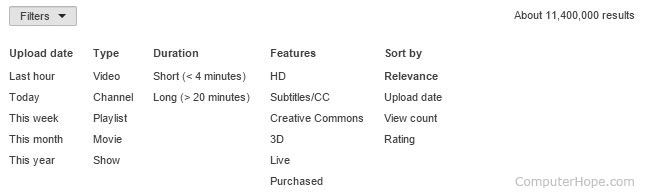
YouTube usually does a great job giving you search results but is not always perfect. Take full advantage of their search filters by clicking the Filters button to get a list like that shown below. In the filters list you can refine the searches to when the video wasuploaded, length of the video, view count, and features like HD (High definition) and 3D.
YouTube search filters

Watch live videos on YouTube

YouTube is not just pre-recorded uploaded videos they now also feature YouTube Live, which has live events, sports, news, gaming, music, education, and much more.

Take full advantage of YouTube tools

Not many people know that YouTube also has several helpful YouTube Tools that can help extremely helpful when creating new content. For example, the YouTube editor allows you to edit uploaded videos, create videos, and adjust settings like the brightness and contrast, pan and zoom, stabilize, slow motion, and rotation. Other tools include a Slideshow creator, YouTube capture, Captions, Audio Library, and YouTube Analytics.

Bypass regional restrictions and other blocks

Some videos may have restrictions that prevent them from playing on a certain device, playing in a certain region, or other restrictions that prevent you from playing the video. You can bypass some of these restrictions by changing how the URL is entered into your address bar.
For example, copy the id of the video (shown in red) in the URL.
https://www.youtube.com/watch/?v=dD40VXFkusw
Once the id of the video has been copied erase everything after the .com/ and add "v/<id>" where id is what was copied earlier. Once this is done your URL should resemble the example shown below.
https://www.youtube.com/v/dD40VXFkusw
Loading this URL opens the video in a full screen, but because of how it is loaded many of the restrictions YouTube may have on the video are ignored.

Set the default video quality

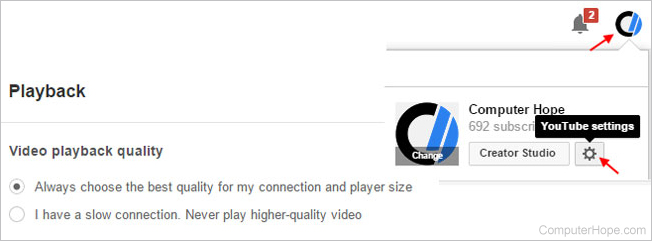
Watch all videos at the highest quality by adjusting your settings to use the best quality. To adjust your settings click on your profile icon in the top-right corner of the window and click the YouTube Gear settings icon as shown below. In the YouTube Account Settings, select Playback and then select "Always choose the best quality for my connection and player size." If you have a slow Internet connection or YouTube videos frequently need to buffer, select the "I have a slow connection. Never play higher-quality video" option.
Change YouTube video quality

Alternative ways to watch YouTube

There are dozens of ways to watch YouTube today. Most Smart TVs already have an app that allows you to watch YouTube videos on your TV using your remote. For those who do not have Smart TV or have a Smart TV but do not like the interface (it is not easy typing on a remote), there are also other solutions.
ChromecastOur current favorite method of watching YouTube on the TV is using the Google Chromecast. The Chromecast allows you or anyone else with a smartphone or computer to stream YouTube videos to your TV with a click of a button. The Chromecast is the easiest solution to stream videos to your TV, and you can type on your phone or computer or use your voice to search for videos instead of using your TV remote.
Other popular alternatives of watching YouTube
  • Apple TV - The Apple TV is another great solution for watching YouTube and other content.
  • Consoles - Consoles like Xbox, PlayStation 3, and Wii all have a YouTube player.
  • Lean Back - YouTube Lean Back is a completely different way of watching YouTube videos and allows you to browse and watch videos on alternative devices.
  • Roku - The Roku is another great device that connects to your TV to watch YouTube and other content.
  • TiVo - The TiVo DVR is another fantastic method of watching YouTube, your shows, and other content.

Windows 8 tilesUpdate to Windows 8.1


Microsoft has released Windows 8.1, which is a free upgrade for anyone running Windows 8. This update addresses many of the problems users have had with Windows 8 and also adds a Start button. Visit Microsoft's Windows 8.1 page for the update.

Customize your tiles

Make the most of your Windows Start screen tiles by adjusting the sizes, where they are located, and what is listed.
  • Move any tile by clicking and dragging the tile. While moving a tile, if you need a larger view of the Start screen move the tile towards the top or bottom of the screen to zoom out.
  • Use your mouse wheel to scroll left-to-right through your tiles.
  • Any Desktop shortcut or program can be pinned to the Start screen by right-clicking the icon and choosing Pin to Start.
  • In the bottom right-hand corner of the start screen is a magnifying glass with tiles, click this icon to get a zoomed out view of your Start screen. In this view, if you right-click on a group of tiles you'll be given the option to name group, which can be useful if you have a group of related tiles (e.g. games). In this view, you can also click and drag a group to organize your tile groups.
  • Create a new speed bump between tile groups by moving a tile to a speed bump.
  • Resize any User tile or Live tile by right-clicking the tile and choosing resize.
  • If there is a tile you want on your Taskbar, right-click the tile and choose Pin to taskbar.
  • Show admin applications on the Start screen by clicking Settings in Charms, click Settings, and change the Show administrative tools from No to Yes.
  • In Internet Explorer 10, you can also pin any of your favorite web pages to your Start Screen.

Windows 8 keyboard shortcuts

Knowing at least some of the Windows 8 keyboard shortcuts helps make your Windows 8 experience much more enjoyable. Try to memorize these top Windows 8 shortcut keys.
  • Press the Windows key to open the Start screen or switch to the Desktop (if open).
  • Press the Windows key + D opens the Windows Desktop.
  • Press the Windows key + . to pin and unpin Windows apps on the side of the screen.
  • Press the Windows key + X to open the power user menu, which gives you access to many of the features most power users would want (e.g. Device Manager and Command Prompt).
  • Press the Windows key + C to open the Charms.
  • Press the Windows key + I to open the Settings, which is the same Settings found in Charms.
  • Press and hold the Windows key + Tab to show open apps.
  • Press the Windows key + Print screen to create a screen shot, which is automatically saved into your My Pictures folder.
See our Windows shortcuts page for a full listing of all Windows shortcuts.

Know your hot corners

The corners on your screen are hot corners and give you access to different Windows features. Below, is a brief explanation of each of these corners.
Bottom Left-hand corner
The bottom left-hand hot corner of the screen allows you to access the Start screen. If you're in the Start screen and have the Desktop open, this corner opens the Desktop from the Start screen.
Tip: Right-clicking in the left hand corner opens the power user menu.
Top-left corner of the screen
Moving the mouse to the top-left corner and then down displays all the apps running on the computer. Clicking and dragging any of these apps to the left or right-hand side of the screen will snap that app to that side of the screen. Each of these open app icons can also be right-clicked to close or snap.
Right-hand side of the screen
On the full right-hand side of the screen will be given access to the Windows Charms.

Taking advantage of search

The Search in Windows 8 has been significantly improved when compared to all previous versions of Windows. To search for a file or run a program in Windows 8 from the Start screen just start typing what you're trying to find or want to run.
As you begin typing, the results will start appearing on the left-hand side. The Search also supports limiting the search to apps such as Finance, People, Maps, Photos, Mail, Music, Videos, Weather, and much more. If what you are searching for is not a file or program, click on the app you want to use as the search. For example, if you were searching for "New York" and selected the Weather App you would be shown the weather in New York, NY.
By default, Search organizes the available Apps by how frequently they are used and then in alphabetical order. If you want to keep your favorite app at the top of the Search list, right-click the app and choose Pin. Pinning the app will lock it in place regardless of how often it is used. If there is an app you don't want (e.g. Finance) you can turn on and off any of the search apps through the PC settings, which is found under the Settings in the Charms.
Bonus tip: The Search is also found through Charms and can also be opened by pressing Windows key + F.

Running two apps side by side

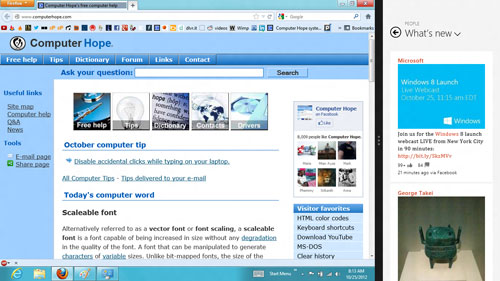
Any app can be pinned to the left or right-hand side of the screen. For example, open the People app and then press the Windows Key + . (period) to move that app to the right-hand side of the screen, pressing the same keys again will move it to the left-hand side, and pressing the same keys again makes it full screen. While an app is pinned, any other app or program can be opened and loaded into the available space on the screen. For example, in the picture below, we've opened a browser window and have the People app running to monitor our social networks.
Windows 8 People
Any open app can also be pinned using your mouse by clicking at the top of the tile and dragging it to the left or right-hand side of the screen.
Bonus tip: The Desktop can also be pinned to the left or right-hand side of the screen.
Note: For snap to work properly your resolution must be at least 1,366 x 768.

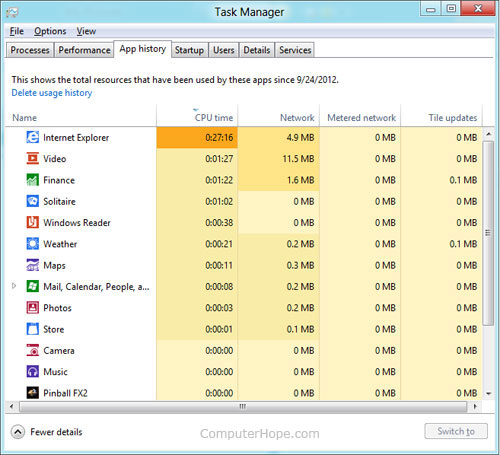
Windows 8 Task Manager

The Windows 8 Task Manager has been significantly improved over previous versions of Windows. Some of the changes include a total percent usage of your Processes, improved Performance graphs, a Startup tab to see startup processes, and the App history tab (as shown below) for total resources an app. Press Ctrl + Shift + Esc to start exploring the new Task Manager.
Windows 8 Task Manager

Use a picture password to log into your computer

Windows 8 includes a new feature called Picture password, which allows you to authenticate with the computer using a series of gestures that include circles, straight lines, and taps. Enable this feature if you want a new way to access your computer or have a hard time with passwords.
  1. Open the Windows Charms.
  2. Click Settings and then More PC settings
  3. In the PC settings window click Users and then select Create a picture password
Bonus tip: A four digit pin password can also be created and used to access your computer.

Take advantage of Windows 8 apps

Windows 8 comes included with several apps to help you get the most from your computer. Below are just a few of the included apps.
People
Microsoft touts the People feature in Windows 8 because they understand how many people are using social networks today. In the People feature you'll be able to connect your Windows computer to all the major social networks including Facebook, LinkedIn, and Twitter. Once connected, you can pin the people app and monitor your social network (as shown below), use People in Search to find people, and get an overview of what is happening in all your social networks.
Windows 8 People
Reader
The Reader app gives you PDF support right out of the box.
SkyDrive
The SkyDrive app gives you access to the Microsoft cloud service for storing photos, documents, and other files in a cloud and access or share those files easier.
Store
Take advantage of the Windows Store and install one or more of the thousands of available apps designed for Windows 8. The Store is found in the Start screen, or use Search to search the Store app for any apps that you are trying to find.

Know the answers to common questions

Windows 8 is the biggest change to Microsoft Windows since the introduction of Windows 95, which was released all the way back in 1995. Since so many people have grown up with Windows, it can be difficult to transition to a new way of doing things. Below, is a short list of the most common questions previous Windows users have.
Top 10 keyboard shortcuts
Using keyboard shortcuts can greatly increase your productivity, reduce repetitive strain, and help keep you focused. For example, to copy text, you can highlight text and press the Ctrl + C shortcut. The shortcut is faster than moving your hands from the keyboard, highlighting with the mouse, choosing copy from the file menu, and then returning to the keyboard.
Below are the top 10 keyboard shortcuts we recommend everyone memorize and use.

Ctrl + C or Ctrl + Insert and Ctrl + X

Both Ctrl + C and Ctrl + Insert will copy the highlighted text or selected item. If you want to cut instead of copy press Ctrl + X.
Apple computer users can substitute the Ctrl key for the command (cmd) key on their computers. For example, pressing Cmd + C copies the highlighted text.

Ctrl + V or Shift + Insert

Both the Ctrl + V and Shift + Insert will paste the text or object that's in the clipboard.
For Apple computer users use Cmd + V.
Practice
Use the above text input fields to highlight the "Cut or copy this text" text and press either Ctrl + C to copy or Ctrl + X to Cut the text. Once Cut Move to the next field and press Ctrl + V or Shift + Insert to paste the text.

Ctrl + Z and Ctrl + Y

Pressing Ctrl + Z will Undo any change. For example, if you cut text, pressing this will undo it. These shortcuts can also be pressed multiple times to undo or redo multiple changes. Pressing Ctrl + Y would redo the undo.
For Apple computers use Cmd + Z and Cmd + Y to undo and redo.
Use the above text input field to highlight some or all of the text and then press Ctrl + X to cut the text. Once the text has disappeared press the Ctrl + Z to undo the cut.
Tip: If you did the first example as well (cut and paste text) if you continue to press Ctrl + Z it is also going to undo that change.

Ctrl + F

Pressing Ctrl + F opens the Find in any program. Ctrl + F includes your Internet browserto find text on the current page. Press Ctrl + F now to open the Find in your browser and search for "shortcut" to find each time shortcut is mentioned on this page.
For Apple computer use Cmd + F to find.

Alt + Tab or Ctrl + Tab

Pressing Alt + Tab switches between open programs moving forward. For example, if you have your browser window open and other programs running in the background press and hold Alt and then press tab to cycle through each open program.
On Apple computers instead of using the Alt key use the Command (Cmd) key. For Example, Cmd + Tab to switch between open programs.
Bonus Tip: Press Ctrl + Tab to switch between tabs in a program. For example, if you have multiple tabs open in your browser now press Ctrl + Tab to switch between open tabs.
Bonus Tip: Adding the Shift key to Alt + Tab or Ctrl + Tab moves backward. For example, if you are pressing Alt + Tab and pass the program you want to use, pressAlt + Shift + Tab to move back to that program.
Bonus Tip: Windows Vista, 7, 8, and 10 users can also press the Windows Key + Tab to switch through open programs in a full screenshot of the window.

Ctrl + Back space and Ctrl + Left or Right arrow

Note: This is for PC computer users only and does not work on Apple computers
Pressing Ctrl + Backspace will delete a full word at a time instead of a single character.
Holding down the Ctrl key while pressing the left or right arrow will move the cursor one word at a time instead of one character at a time. If you want to highlight one word at a time, hold down Ctrl + Shift and then press the left or right arrow key to move one word at a time in that direction while highlighting each word.

Ctrl + S

While working on a document or other file in almost every program, pressing Ctrl + Ssaves that file. Use this shortcut key frequently if you're working on anything important in case an error happens, you lose power, or other problem that causes you to lose any work since the last save.
On Apple computers use Cmd + S to save a file.

Ctrl + Home or Ctrl + End

Ctrl + Home will move the cursor to the beginning of the document, and Ctrl + End will move the cursor to the end of a document. These shortcuts work with most documents, as well as web pages.
On Apple computers use Command and the Cmd and the up arrow to get to the beginning of a document or text or Cmd and the down arrow to get to the end of a document or text.

Ctrl + P

Open a print preview of the current page or document being viewed. For example, pressCtrl + P now to view a print preview of this page.
On Apple computers use Cmd + P to open the print preview.

Page Up, Spacebar, and Page Down

Pressing either the page up or page down key will move that page one page at a time in that direction. When browsing the Internet, pressing the spacebar also moves the page down one page at a time.
Tip: If you are using the spacebar to go down one page at a time, press the Shift key and spacebar to go up one page at a time.

Blog Archive

Contact Us

About Us

Privacy Policy

Copyright © The Way oF HacKeRs....! | Powered by Blogger
Design by Crackiapps | Blogger Template by Crackiapps.blogspot.com